|
|
Having completed the last step, the software is now activated (that is, fully-functional). For a fuller explanation of each step read on.
- Download the trial or demo version.
On each product page there is a link to download the installation program for the trial or demo version. These download links are collected together here.
- Install the software.
What is downloaded via the download page is an executable installer program (e.g., edc_setup.exe) which is contained in a ZIP file (e.g., edc_setup.zip). Locate this (using Windows Explorer) after downloading, and unzip the ZIP file to obtain the executable. Run this (by double-clicking on the program icon) to begin the installation process. After this is completed you can run the program from the Windows Start | Programs menu.
The installation program must be run from an admin account (that is, an account with administrator privileges) because it installs the Visual Basic system files. No other files are written to any system folder.
- Run the software; a window appears with three buttons.
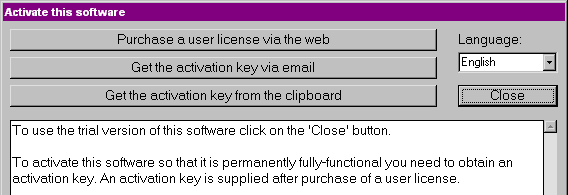
 If, for now, you are mainly interested in seeing how the software looks and getting an idea of what it can do then you can just close this window (you can return to it via the 'Activate this software' button on the main screen).
 - Click on the 'Purchase a user license' button.
After (but not before) you have examined the trial or demo version and are reasonably sure that it will do what you need it to do then click on the first button to go to our PayPal gateway page. Your 'machine signature' should now be visible (you don't need to know what this is, just that your activation key depends on it).
- Purchase the license.
Follow the links to the PayPal order form and make the purchase.
- At the completion of your purchase a web page will appear which displays your activation key, which will be something like:
WHabwynotqWDZQ6ZT8SOzguuO8A2M This page also states that an email message has been sent to the email address you gave. In case there is a problem with the delivery of the email message (some aggressive spam filters might kill it) it is advisable to save the web page displaying the key.
The email message directs you to a web page on our site where you can request the activation key (which is not necessary if you get the key from the web page).
- Highlight the activation key and copy it to the clipboard.
Highlight the activation key (either in the web page or in the email message) and copy it to the clipboard (in Windows XP this is called the clipBook). It is sufficient to highlight any block of text which contains the activation key.
- If the 'Activate this software' window is still open click on the third button.

If the window is not still open then click on the 'Activate this software' button.
If the software is not running, then run it. In any of these three cases the software will get the activation key from the clipboard.
The software is now activated (that is, fully-functional), and normally you will not need to activate the software (but keep the email message containing it, just in case).
| Email contact | Hermetic Systems Home Page |